Technology-World

Latest Technology Updates

  • Home
  • Business
    • Internet
    • Market
    • Stock
  • Parent Category
    • Child Category 1
      • Sub Child Category 1
      • Sub Child Category 2
      • Sub Child Category 3
    • Child Category 2
    • Child Category 3
    • Child Category 4
  • Featured
  • Health
    • Childcare
    • Doctors
  • Home
  • Business
    • Internet
    • Market
    • Stock
  • Downloads
    • Dvd
    • Games
    • Software
      • Office
  • Parent Category
    • Child Category 1
      • Sub Child Category 1
      • Sub Child Category 2
      • Sub Child Category 3
    • Child Category 2
    • Child Category 3
    • Child Category 4
  • Featured
  • Health
    • Childcare
    • Doctors
  • Uncategorized
Showing posts with label windows. Show all posts

Monday, 24 February 2014

How to use USB flash drive as ram in windows 8, 7 and XP (pendrive)

 Tushar Bedekar     05:34     windows     1 comment   

Many of the programs in the system uses lots of memory during operations. The processing speed of a system depends on RAM.  So to solve this problem use your pendrive or USB as a RAM.
Using pendrive as a RAM increases the system performance. It is not a difficult process you can easily do this with the help of the following simple steps.
First insert your pendrive (minimum 2GB recommended).
Format your pendrive.

Steps for Windows XP
  • Right click on “My Computer” and go to “properties”.
  • Now click on ‘Advance tab’.
  • Click on the ‘settings’ of performance.
  • Now the performance options appear. Go to ‘Advance tab’.
  • Click on ‘change’ option of virtual memory.
  • Select your pen drive.
  • Click on ‘custom size’ which is a radio button. It displays the initial and maximum size of the pen drive.
  • Click on ‘set’ button.
  • Click ‘OK’ to complete the setup. 
Finally you had to restart your PC.
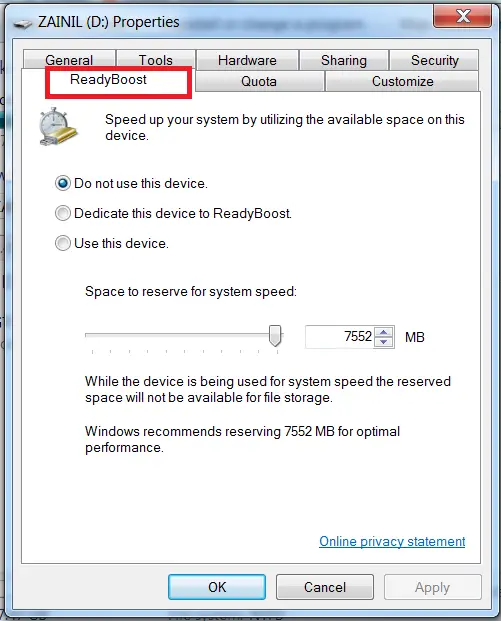
Steps for Windows 8 and 7
  • Plug in your Pen drive.
  • Format it.
  • Right click on the pen drive icon.
  • Select ‘properties’.
    • Select ‘Ready boost’.
    • Click “use this device”.
    • Now select the maximum space that  RAM can give to the computer.
    • Click ‘ok’ and ‘apply’.

      MORE
      There is a software called Eboostr which uses the hidden RAM in your computer. You can configure more than 4 pen drives with this software.

Read More
  • Share This:  
  •  Facebook
  •  Twitter
  •  Google+
  •  Stumble
  •  Digg

Wednesday, 22 January 2014

Create a new Hard Disk Drive Partition without Formatting in Windows

 Tushar Bedekar     06:15     windows     No comments   


In case you guys haven’t noticed, you don’t need to format your Hard Disk Drive for partitioning. It’s really simple and easy to partition the Hard Disk Drives in any operating system now, let me guide you the process of how it’s done in Windows as it is the most commonly used operating software in PC’s today.
Let’s start by hitting on the start button.
Right click on My Computer and select manage option.

Create a new Hard Disk Drive Partition without Formatting in Windows 1
This will open up the Computer management tab and so as we are dealing with memory here look for storage
Create a new Hard Disk Drive Partition without Formatting in Windows 2
Click on storage option and underneath that you’ll find disk management which might just take a fraction of time to open up if you got a highly configured system. Here you will find all the information about disks present in your system.
Create-a-new-Hard-Disk-Drive-Partition-without-Formatting-in-Windows-3
Now select any one disk comprising of more free space compared to all the disks
Right click on the selected drive.
Select the option named Shrink Volume which will use the existing Hard Disk memory space and create a new drive. After querying up whether the shrinking is possible, it will open up a new tab.
Create-a-new-Hard-Disk-Drive-Partition-without-Formatting-in-Windows-4
Enter the size to shrink in the new drive, remember always in MB’s.
Create-a-new-Hard-Disk-Drive-Partition-without-Formatting-in-Windows-5
Click on Shrink and a new Drive space is generated.
Right click on the New Drive and select new simple volume. Then clicking next will take you to assigning a letter to the disk and even set a path of the partition. After you name your drive click on next till you finish the process.
There you go in no time without any formatting you got yourself partitioned a new drive. Now here creation is done.
This should definitely help the ones with partitioning issues.
And you don’t need any third party (as in tools from the internet) to do this stuff.
Read More
  • Share This:  
  •  Facebook
  •  Twitter
  •  Google+
  •  Stumble
  •  Digg

Thursday, 9 January 2014

Cross Bar Resistive Ram

 Tushar Bedekar     02:58     windows     No comments   

Santa Clara-based startup Crossbar has just announced a potentially game-changing new memory chip that it claims has the potential to replace standard flash memory in a number of applications.


Santa Clara-based startup Crossbar has just announced a potentially game-changing new memory chip that it claims has the potential to replace standard flash memory in a number of applications.

Crossbar calls its new technology Resistive RAM, and says that it has the ability to store up to a terabyte of data onto a single chip that comes smaller than the size of a postage stamp. Not only this, but it can access that data twenty times faster than the current best of breed flash memory available, a feature that could easily disrupt a market said to be worth some $60 billion a year.

With flash memory being used in just about every ‘smart’ device these days – from iPhones to cameras to tablets – Crossbar believes that its Resistive RAM tech can lead to a fresh wave of innocation in consumer, mobile, enterprise and industrial devices. Importantly, the company isn’t the only one to share that belief – it’s also secured backing to the tune of $25 million from investors including Artiman Ventures, Kleiner Perkins Caufield & Byers, and Northern Light Venture Capital.

These are bold claims, but how can it be possible? Crossbar says that the key to Resistive RAM is its simple electrical structure, which consists of just three-layers of silicon-based material, including top and bottom electrodes, and a switching medium. The idea is that the voltage flowing across the electrodes creates a filament where the data can be stored. This filament is tiny – just 10nm – and can adjust to shrinking feature sizes. The company claims that its technology will provide ten years of retention and a lifetime of around 10,000 write cycles per cell.

You might be thinking that 10,000 write cycles is nothing special, but this is around ten times better than current flash memory. Moreover, Crossbar’s chips use twenty times less power than regular flash when performing storage functions, which means that the battery life of devices could potentially be extended to weeks or even months. But by far and away the biggest advantage of Resistive RAM is its write speed – at twenty times faster than regular flash, dozens of issues that cause headaches for flash controllers would be eliminated.

Of course, Crossbar’s chips aren’t the only Resistive RAM technology hoping to disrupt the market. Various other concepts exist that promise faster write speeds and greater endurance, however these are not easy to manufacture. But this is precisely why Crossbar’s technology has such great potential – it can be manufactured simply with existing technologies and materials, something that bodes well for its ability to come to the market at a competitive price.

It’ll be a while for Resistive RAM to get off the ground – Crossbar says that consumer products using ReRAM probably won’t appear until 2016 at the earliest, but when they do the dream of carrying around a 1TB mobile phone in your pocket could soon become a reality.
Read More
  • Share This:  
  •  Facebook
  •  Twitter
  •  Google+
  •  Stumble
  •  Digg
Older Posts Home

Popular Posts

  • DO YOU KNOW
  • Update Samsung Galaxy S4 I9500 with official Android 4.3 Jelly Bean OTA firmware
    Samsung Galaxy S4 I9500 device with Exynos 5 Octa CPU has been received the latest OTA update Android 4.3 Jelly Bean firmware. This actual ...
  • Samsung Galaxy S4 Download BBM FOR ANDROID
    BBM 2.6.9.127   Blackberry messenger aka BBM is an application that is only available in blackberry smart phone. This is the most po...
  • TouchWiz a Stock Base Custom Rom For Galaxy ACE
    [ROM] PureKAT 2.3  Android 4.4 kitkat like ROM for Samsung Galaxy Y S5360 is now available to update your mobile. The Android  PureKAT 2....
  • How to open Microsoft Office Files on Android Mobile (MS Office) | Tablet
    Until today, there are many  Microsoft Office (MS office) Android Apps  available in the Google play store. Some of these apps only work o...
  • How To Share PC Internet To Mobile
    What is Tethering? Tethering is a process of sharing your phones mobile data with other devices like Laptop, Tablet etc. Reverse Tethe...
  • Window Phone 8 Launcher Free For Android
    Hi........Now you don't need to spend any money in buying a Windows phone ..you can still Experience Windows 8 on your Android , Today ...
  • How to use USB flash drive as ram in windows 8, 7 and XP (pendrive)
    Many of the programs in the system uses lots of memory during operations. The processing speed of a system depends on RAM.  So to solve th...
  • Create a new Hard Disk Drive Partition without Formatting in Windows
    In case you guys haven’t noticed, you don’t need to format your Hard Disk Drive for partitioning. It’s really simple and easy to parti...
  • (no title)
    Update Samsung Galaxy S3 I9300 to  4.3 Jelly Bean OTA firmware Samsung Galaxy S3 I9300 device received a new update named Androi...

Recent Posts

Categories

  • android
  • apps
  • General Knowledge
  • How TOs
  • windows

Unordered List

Pages

Text Widget

Blog Archive

  • ▼  2014 (10)
    • ▼  February (2)
      • How to use USB flash drive as ram in windows 8, 7 ...
      • TouchWiz a Stock Base Custom Rom For Galaxy ACE
    • ►  January (8)
  • ►  2013 (6)
    • ►  October (1)
    • ►  September (1)
    • ►  July (3)
    • ►  April (1)
  • ►  2012 (2)
    • ►  November (2)
Menu :
Powered by Blogger.

Wikipedia

Search results

Follow us on facebook

Featured Posts

  • MATHS MAGIC
  • How to use USB flash drive as ram in windows 8, 7 and XP (pendrive)
  • DO YOU KNOW
  • (no title)
  • Create a new Hard Disk Drive Partition without Formatting in Windows
  • THE BRAIN FEELS NO PAIN
  • Update Samsung Galaxy S4 I9500 with official Android 4.3 Jelly Bean OTA firmware
  • How To Share PC Internet To Mobile
  • TouchWiz a Stock Base Custom Rom For Galaxy ACE
  • Samsung Galaxy S4 Download BBM FOR ANDROID

About Me

  • Tushar Bedekar
  • Tushar

Formulir Kontak

Name

Email *

Message *

Contact Form

Name

Email *

Message *

Contact Us

Total Pageviews

Blog Archive

  • ▼  2014 (10)
    • ▼  February (2)
      • How to use USB flash drive as ram in windows 8, 7 ...
      • TouchWiz a Stock Base Custom Rom For Galaxy ACE
    • ►  January (8)
  • ►  2013 (6)
    • ►  October (1)
    • ►  September (1)
    • ►  July (3)
    • ►  April (1)
  • ►  2012 (2)
    • ►  November (2)

Labels

  • android
  • apps
  • General Knowledge
  • How TOs
  • windows
  • Home ▼
    • About-Us
    • Contact-us
    • Advertise
    • Sitemap
  • Make Money Online
  • Blogging
  • Facebook
  • SEO
  • Android
  • Windows 8
  • Templates
  • Giveaways

Labels

  • android
  • apps
  • General Knowledge
  • How TOs
  • windows

Translate

Subscribe via Email
Blogger Tips and TricksLatest Tips And TricksBlogger Tricks

Add to Circle

Add Your Gadget Here

Text Widget

Search

  • Home
Find Us

Search This Blog

Pages

  • Home
  • PRIVACY POLICY
  • ABOUT US
  • CONTACT US

Sample Text

Copyright © Technology-World | Powered by Blogger
Design by Hardeep Asrani | Blogger Theme by NewBloggerThemes.com | Distributed By Gooyaabi Templates