Technology-World

Latest Technology Updates

  • Home
  • Business
    • Internet
    • Market
    • Stock
  • Parent Category
    • Child Category 1
      • Sub Child Category 1
      • Sub Child Category 2
      • Sub Child Category 3
    • Child Category 2
    • Child Category 3
    • Child Category 4
  • Featured
  • Health
    • Childcare
    • Doctors
  • Home
  • Business
    • Internet
    • Market
    • Stock
  • Downloads
    • Dvd
    • Games
    • Software
      • Office
  • Parent Category
    • Child Category 1
      • Sub Child Category 1
      • Sub Child Category 2
      • Sub Child Category 3
    • Child Category 2
    • Child Category 3
    • Child Category 4
  • Featured
  • Health
    • Childcare
    • Doctors
  • Uncategorized

Monday, 24 February 2014

How to use USB flash drive as ram in windows 8, 7 and XP (pendrive)

 Tushar Bedekar     05:34     windows     1 comment   

Many of the programs in the system uses lots of memory during operations. The processing speed of a system depends on RAM.  So to solve this problem use your pendrive or USB as a RAM.
Using pendrive as a RAM increases the system performance. It is not a difficult process you can easily do this with the help of the following simple steps.
First insert your pendrive (minimum 2GB recommended).
Format your pendrive.

Steps for Windows XP
  • Right click on “My Computer” and go to “properties”.
  • Now click on ‘Advance tab’.
  • Click on the ‘settings’ of performance.
  • Now the performance options appear. Go to ‘Advance tab’.
  • Click on ‘change’ option of virtual memory.
  • Select your pen drive.
  • Click on ‘custom size’ which is a radio button. It displays the initial and maximum size of the pen drive.
  • Click on ‘set’ button.
  • Click ‘OK’ to complete the setup. 
Finally you had to restart your PC.
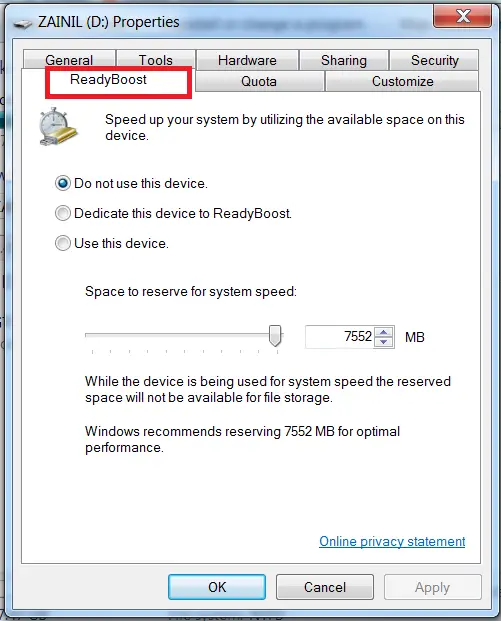
Steps for Windows 8 and 7
  • Plug in your Pen drive.
  • Format it.
  • Right click on the pen drive icon.
  • Select ‘properties’.
    • Select ‘Ready boost’.
    • Click “use this device”.
    • Now select the maximum space that  RAM can give to the computer.
    • Click ‘ok’ and ‘apply’.

      MORE
      There is a software called Eboostr which uses the hidden RAM in your computer. You can configure more than 4 pen drives with this software.

Read More
  • Share This:  
  •  Facebook
  •  Twitter
  •  Google+
  •  Stumble
  •  Digg

TouchWiz a Stock Base Custom Rom For Galaxy ACE

 Tushar Bedekar     04:43     How TOs     No comments   

[ROM] PureKAT 2.3 


Android 4.4 kitkat like ROM for Samsung Galaxy Y S5360 is now available to update your mobile. The Android PureKAT 2.3  ROM for Samsung Galaxy Y is includes all the new features in the latest version. You can upgrade your phone to Android 4.4 kitkat Operating System by installing this custom ROM.all credits goes to the original developer.Here is a guide to update your Samsung Galaxy Y to Android PureKAT 2.3t Custom ROM.

The Samsung Galaxy Y is normally comes with Android 2.3 Gingerbread as an Operating System. There is no official Android 4.4 kitkat upgrade from Samsung mobile Support. Because the phone’s hardware configuration is not supported for the upgrade. The Phone is comes with 800 MHz processor, 3.2 Mega pixel camera, Capacitive touch Screen.

Introduction to ROM:

After the success of PureKAT 1.0 and 1.5. We are presenting PureKAT 2.0 . 
As recommended by us this rom is suitable for daily use. 
We, PureDevs have tried to give you an Ultra fast stable rom. 
It is totally based on Android Open Source Project (AOSP). 
That is why we named it Pure. 
Since I talk too less so lets know some of its key features.

Key Features:


1. A simple and unique pure rom.
2. Holo Launcher as default one(Latest Kk Edition).
3. Revamped StatusBar.(Added 3 more tabs + Swipe to remove notifications) 
4. Themed framework from scratch(Added Task Manager Button in recent apps)
5. Pure Preferences included to control whole rom from one place.
6. Latest version of Link2SD.
7. Latest Version of PlayStore.
8. Adaway hosts file (To remove adds).
9. New PureKAT BootAnimation (Simple -For faster booting)
10. Modded MIUI Music Player.
11. Beats app for better music quality.
12. Revamped Dialer and Contacts.
13. EDT tweaks included.
14. And much more..

Screenshots:

PureKAT 2.3


To Download And Install Visit:-


Source:-XDA Developers
Read More
  • Share This:  
  •  Facebook
  •  Twitter
  •  Google+
  •  Stumble
  •  Digg

Wednesday, 22 January 2014

Create a new Hard Disk Drive Partition without Formatting in Windows

 Tushar Bedekar     06:15     windows     No comments   


In case you guys haven’t noticed, you don’t need to format your Hard Disk Drive for partitioning. It’s really simple and easy to partition the Hard Disk Drives in any operating system now, let me guide you the process of how it’s done in Windows as it is the most commonly used operating software in PC’s today.
Let’s start by hitting on the start button.
Right click on My Computer and select manage option.

Create a new Hard Disk Drive Partition without Formatting in Windows 1
This will open up the Computer management tab and so as we are dealing with memory here look for storage
Create a new Hard Disk Drive Partition without Formatting in Windows 2
Click on storage option and underneath that you’ll find disk management which might just take a fraction of time to open up if you got a highly configured system. Here you will find all the information about disks present in your system.
Create-a-new-Hard-Disk-Drive-Partition-without-Formatting-in-Windows-3
Now select any one disk comprising of more free space compared to all the disks
Right click on the selected drive.
Select the option named Shrink Volume which will use the existing Hard Disk memory space and create a new drive. After querying up whether the shrinking is possible, it will open up a new tab.
Create-a-new-Hard-Disk-Drive-Partition-without-Formatting-in-Windows-4
Enter the size to shrink in the new drive, remember always in MB’s.
Create-a-new-Hard-Disk-Drive-Partition-without-Formatting-in-Windows-5
Click on Shrink and a new Drive space is generated.
Right click on the New Drive and select new simple volume. Then clicking next will take you to assigning a letter to the disk and even set a path of the partition. After you name your drive click on next till you finish the process.
There you go in no time without any formatting you got yourself partitioned a new drive. Now here creation is done.
This should definitely help the ones with partitioning issues.
And you don’t need any third party (as in tools from the internet) to do this stuff.
Read More
  • Share This:  
  •  Facebook
  •  Twitter
  •  Google+
  •  Stumble
  •  Digg

How to open Microsoft Office Files on Android Mobile (MS Office) | Tablet

 Tushar Bedekar     06:08     android, How TOs     No comments   

Until today, there are many Microsoft Office (MS office) Android Apps available in the Google play store. Some of these apps only work on Tablet and other apps will enable all features only if you purchase it. I found few apps, which are free and work on both Android mobile and Tablet.
Most of the people frequently work on Microsoft Word (DOCX File), MS Excel (XLSX file) and MS PowerPoint (PPTX) files and they want these Microsoft Office files to be open on their Android mobile.
Today in this article, I will provide five popular apps that add MS Office compatibility to your Android Device
open Microsoft Office Files on Android Mobile (MS Office)  Tablet

Android Apps to open Microsoft Office files (free)

OfficeSuite 7 (PDF & HD)

OfficeSuite is one of the best apps with highest no of downloads in this category.
It is a universal document viewer for android which enables you to open, share, view and print files.
With the help of office suite application, we can work on the files like Microsoft Word (DOCX), Excel (XLXS), PowerPoint (PPTX), Comma Separated Values (CSV), TXT, PDF and Zip.
OfficeSuite includes an integrated browser with cloud services like Sky Drive, Google Drive and Drop Box.
Download OfficeSuite 7 on Google Play Store

Kingsoft Office 5.9.1 (Free)

Kingsoft office is the mobile office app with the highest rating on the Google Play Store.
This app requires android 2.1 or above version to work
Along with Microsoft Office Documents Kingsoft can open programming language files like C and C++, Java, ASP, CMD and Batch files.
Download Kingsoft Office from Google Play Store

Documents To Go 3.0 Main App

This application has more than 40 Million Downloads on the Google Play Store
Document To Go App have the same features like opening the MS Office files, but the best part of this app is it supports password protected MS Word and MS Excel files.
Download Documents To Go App from Google Play Store
These apps are available for free and quite easy to access MS office applications on your mobile.
Hope you all like my article and if you know any other apps or if I forget anything please mention through comments.
Read More
  • Share This:  
  •  Facebook
  •  Twitter
  •  Google+
  •  Stumble
  •  Digg

How To Share PC Internet To Mobile

 Tushar Bedekar     05:45     How TOs     No comments   

What is Tethering?

Tethering is a process of sharing your phones mobile data with other devices like Laptop, Tablet etc.
Reverse Tethering is exactly opposite to Tethering i.e. the mobile device uses computer or laptop to receives internet data.
The transfer of internet data from PC to Android mobile can be done in two ways
  1. Wi-Fi
  2. USB

Connect Internet from Laptop to Android mobile through Wi-Fi

This method require
1) A Laptop with Wi-Fi Enabled and Internet Connection
2) An Android mobile.
3) Software called Connectify.
First Download Connectify Software and install it on your Laptop. This software is available for free.
Connectify software makes your PC into Wi-Fi Hotspot and shares your Internet Connection.
Now Enable Wi-Fi on your Laptop
Open the installed Connectify software
Since you are using the software for the first time you have to make some settings.
In the settings tab you have to enter the Hotspot name and password in the next box.
In the Dropdown choose the network you wanted to share i.e. the current internet connection you are using.
Internet from Laptop to Android mobile
Now you are almost done turn on Wi-Fi on your Android mobile and connect to the Hotspot you have setup.

Connect Internet from Laptop to Android mobile through USB

This method require
1) Computer with internet connection
2) Android Mobile Phone with USB data cable
3) Easy Tether Lite App
4) Easy Tether Setup
This method doesn’t require rooting of your Android mobile.
First Download Easy tether setup and install it on your computer.
Go to the Google play store Download Easy tether lite app and install it on your android mobile.
Open easy tether lite app on your mobile, in the settings choose USB
Internet from Laptop to Android mobile through USB
Right click on the easy Tether icon present in the notification area and choose connect via USB
Internet from Laptop to Android mobile
Now open Network and sharing settings in your computer and share your internet connection with Easy Tether Network Adapter.
Now it’s done, you can use internet on your Android mobile.
Read More
  • Share This:  
  •  Facebook
  •  Twitter
  •  Google+
  •  Stumble
  •  Digg

Saturday, 11 January 2014

Samsung Galaxy S4 Download BBM FOR ANDROID

 Tushar Bedekar     23:22     android, apps     No comments   

BBM 2.6.9.127


Blackberry messenger aka BBM is an application that is only available in blackberry smart phone. This is the most popular application among blackberry user. It also makes the users to use the BlackBerry as the smartphone of their choice.

Instructions :

Download App
Install APK
BBM is a chat application. It have a working system by using a PIN code. We can add chat friends by bringing them by PIN code. You may can download messenger for bbm apk.

Is it possible to download blackberry messenger / BBM for android?
The answer might be. BBM is a major key to success for blackberry smart phone. Yesterday rumored that it will be available BBM application for android. However, let us Think, this may not be available for android. Because BBM is the lifeblood of blackberry. Therefore, do not expect to be able to get BBM free for android.

So, this is unlikely to be able to download the BBM apk for android. So, another alternative that you can do is download another chat application. Other applications are not less interesting with BBM.
You can download WhatsApps, Yahoo messenger, Line, and so on.

So even if your smartphone is different, you’re android user and and your friends is blackberry users, it was not a problem. For blackberry can also use the Whatsapp and yahoo messenger. You can get the app in the google play for free. Simply find the application there, and install. completed.
Let me know if you have BBM on android.

Screenshots:


Read More
  • Share This:  
  •  Facebook
  •  Twitter
  •  Google+
  •  Stumble
  •  Digg

Friday, 10 January 2014

Update Samsung Galaxy S4 I9500 with official Android 4.3 Jelly Bean OTA firmware

 Tushar Bedekar     03:48     android, apps     No comments   

Samsung Galaxy S4 I9500 device with Exynos 5 Octa CPU has been received the latest OTA update Android 4.3 Jelly Bean firmware. This actual step by step guide listed here will teach you the manually step by step guide to flash the update. 

For detailed information and download details please visit the link given below


Read More
  • Share This:  
  •  Facebook
  •  Twitter
  •  Google+
  •  Stumble
  •  Digg
Older Posts Home

Popular Posts

  • Update Samsung Galaxy S4 I9500 with official Android 4.3 Jelly Bean OTA firmware
    Samsung Galaxy S4 I9500 device with Exynos 5 Octa CPU has been received the latest OTA update Android 4.3 Jelly Bean firmware. This actual ...
  • DO YOU KNOW
  • Samsung Galaxy S4 Download BBM FOR ANDROID
    BBM 2.6.9.127   Blackberry messenger aka BBM is an application that is only available in blackberry smart phone. This is the most po...
  • TouchWiz a Stock Base Custom Rom For Galaxy ACE
    [ROM] PureKAT 2.3  Android 4.4 kitkat like ROM for Samsung Galaxy Y S5360 is now available to update your mobile. The Android  PureKAT 2....
  • How to open Microsoft Office Files on Android Mobile (MS Office) | Tablet
    Until today, there are many  Microsoft Office (MS office) Android Apps  available in the Google play store. Some of these apps only work o...
  • How To Share PC Internet To Mobile
    What is Tethering? Tethering is a process of sharing your phones mobile data with other devices like Laptop, Tablet etc. Reverse Tethe...
  • Window Phone 8 Launcher Free For Android
    Hi........Now you don't need to spend any money in buying a Windows phone ..you can still Experience Windows 8 on your Android , Today ...
  • How to use USB flash drive as ram in windows 8, 7 and XP (pendrive)
    Many of the programs in the system uses lots of memory during operations. The processing speed of a system depends on RAM.  So to solve th...
  • Create a new Hard Disk Drive Partition without Formatting in Windows
    In case you guys haven’t noticed, you don’t need to format your Hard Disk Drive for partitioning. It’s really simple and easy to parti...
  • (no title)
    Update Samsung Galaxy S3 I9300 to  4.3 Jelly Bean OTA firmware Samsung Galaxy S3 I9300 device received a new update named Androi...

Recent Posts

Categories

  • android
  • apps
  • General Knowledge
  • How TOs
  • windows

Unordered List

Pages

Text Widget

Blog Archive

  • ▼  2014 (10)
    • ▼  February (2)
      • How to use USB flash drive as ram in windows 8, 7 ...
      • TouchWiz a Stock Base Custom Rom For Galaxy ACE
    • ►  January (8)
  • ►  2013 (6)
    • ►  October (1)
    • ►  September (1)
    • ►  July (3)
    • ►  April (1)
  • ►  2012 (2)
    • ►  November (2)
Menu :
Powered by Blogger.

Wikipedia

Search results

Follow us on facebook

Featured Posts

  • MATHS MAGIC
  • DO YOU KNOW
  • How to use USB flash drive as ram in windows 8, 7 and XP (pendrive)
  • How To Share PC Internet To Mobile
  • (no title)
  • TouchWiz a Stock Base Custom Rom For Galaxy ACE
  • THE BRAIN FEELS NO PAIN
  • Samsung Galaxy S4 Download BBM FOR ANDROID
  • Update Samsung Galaxy S4 I9500 with official Android 4.3 Jelly Bean OTA firmware
  • Proof of 2+2=5

About Me

  • Tushar Bedekar
  • Tushar

Formulir Kontak

Name

Email *

Message *

Contact Form

Name

Email *

Message *

Contact Us

Total Pageviews

Blog Archive

  • ▼  2014 (10)
    • ▼  February (2)
      • How to use USB flash drive as ram in windows 8, 7 ...
      • TouchWiz a Stock Base Custom Rom For Galaxy ACE
    • ►  January (8)
  • ►  2013 (6)
    • ►  October (1)
    • ►  September (1)
    • ►  July (3)
    • ►  April (1)
  • ►  2012 (2)
    • ►  November (2)

Labels

  • android
  • apps
  • General Knowledge
  • How TOs
  • windows
  • Home ▼
    • About-Us
    • Contact-us
    • Advertise
    • Sitemap
  • Make Money Online
  • Blogging
  • Facebook
  • SEO
  • Android
  • Windows 8
  • Templates
  • Giveaways

Labels

  • android
  • apps
  • General Knowledge
  • How TOs
  • windows

Translate

Subscribe via Email
Blogger Tips and TricksLatest Tips And TricksBlogger Tricks

Add to Circle

Add Your Gadget Here

Text Widget

Search

  • Home
Find Us

Search This Blog

Pages

  • Home
  • PRIVACY POLICY
  • ABOUT US
  • CONTACT US

Sample Text

Copyright © Technology-World | Powered by Blogger
Design by Hardeep Asrani | Blogger Theme by NewBloggerThemes.com | Distributed By Gooyaabi Templates